Link Longbridge Securities Account & Sync Assets
ONEW supports reading account assets through Longbridge Securities authorization, and linking a Longbridge account to an ONEW account. After completing the binding, you can preview the sync results first before deciding whether to write the cash, stocks, funds, and other assets returned by Longbridge into ONEW.
Before You Start
Please make sure:
- You have installed an ONEW version that supports Longbridge asset sync (requires v1.7.0 or later).
- You have a Longbridge Securities account that can be logged in.
- You have already created an ONEW account to receive the Longbridge assets, e.g. "Longbridge Securities".
- Your network can access the Longbridge Open Platform authorization page.
1. Open the Longbridge Securities Connection Entry
Go to the "Settings" tab in ONEW, then tap "Longbridge Securities" under "Advanced Settings".
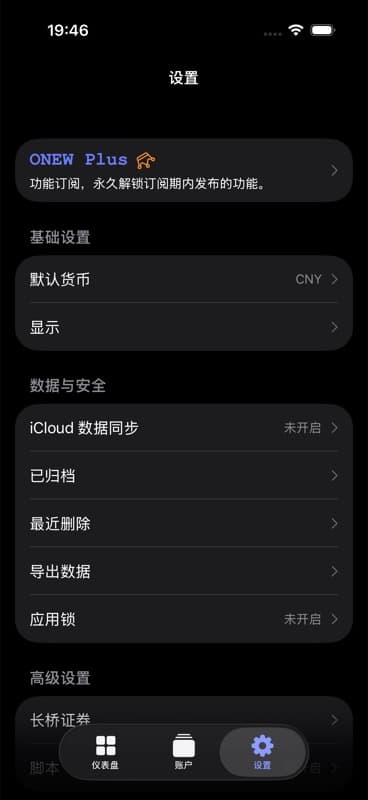
2. Initiate Longbridge Account Connection
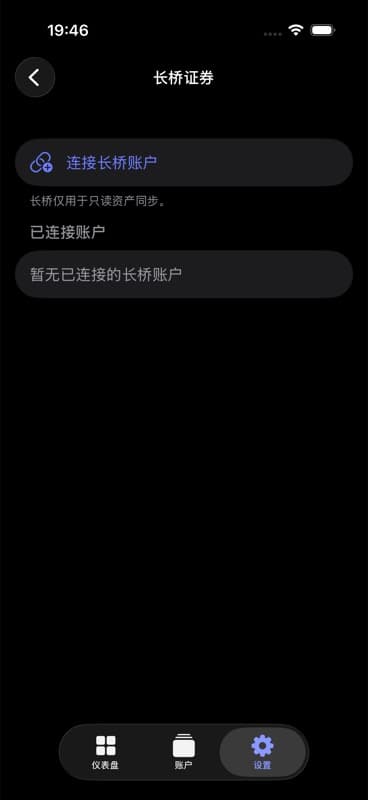
On the "Longbridge Securities" page, tap "Connect Longbridge Account". This shows ONEW's saved Longbridge connections; the first time you use it, the list will show "No connected Longbridge accounts".
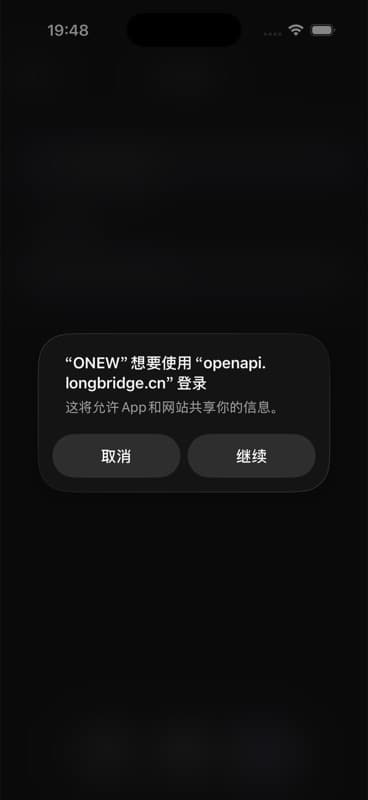
ONEW will invoke the system login authorization. When the system dialog appears, tap "Continue" to enter the Longbridge authorization page.
3. Complete Authorization on the Longbridge Page
The Longbridge authorization page will show that ONEW is requesting access to your Longbridge account. After confirming the correct Longbridge account, check the agreement terms and proceed with authorization.
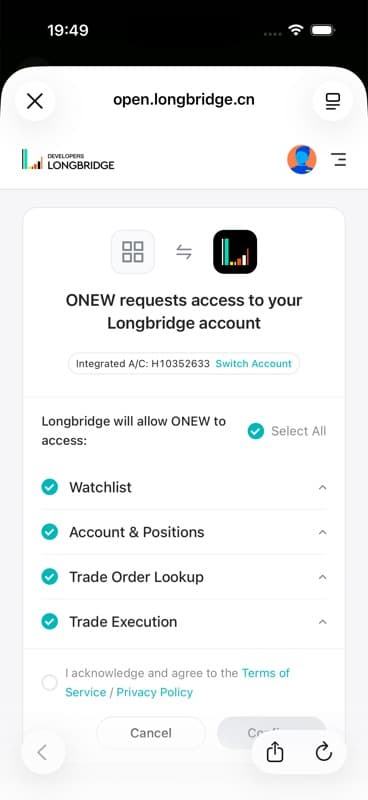
After authorization is complete, the page returns to ONEW. The authorized Longbridge account will now appear in the "Connected Accounts" list on the "Longbridge Securities" page.
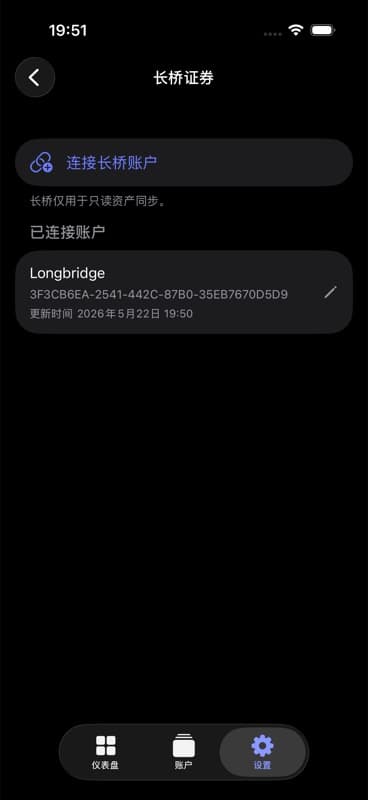
Note: Authorization allows ONEW to use the Longbridge Open Platform to read account and position information for asset sync. Only proceed when you have confirmed the correct account. ONEW only needs "Account & Positions" authorization — other permissions can be left unchecked.
4. Enter Asset Sync Settings for Your ONEW Account
Go back to the "Accounts" tab, open the ONEW account detail page that you want to receive the Longbridge assets. Tap the "Asset Sync" row.
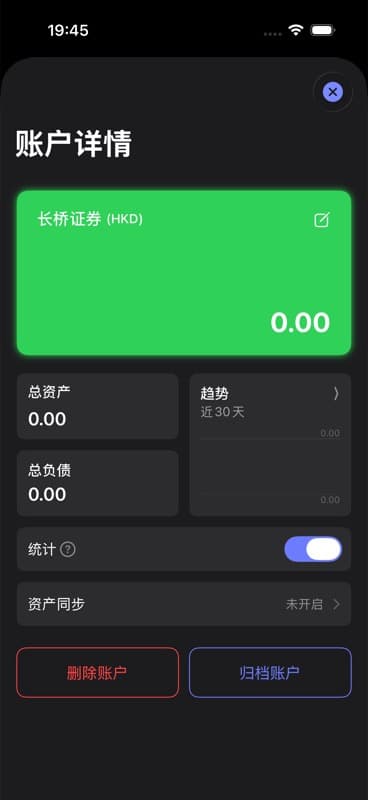
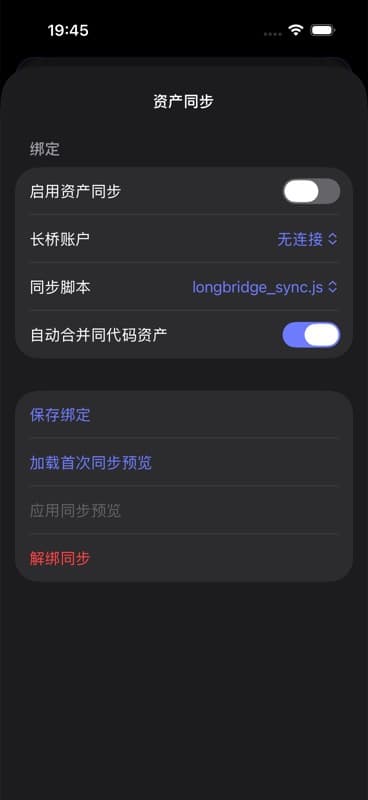
If you haven't completed the Longbridge authorization yet, the "Longbridge Account" field on the asset sync page will show "No Connection" and cannot load a real sync preview.
If your current ONEW account doesn't have Plus access, you can enter Demo mode in "Settings" and create a new Longbridge demo account to receive sync results. The sync screenshots below use a demo mode ONEW account, but the Longbridge connection and sync preview come from real Longbridge authorization.
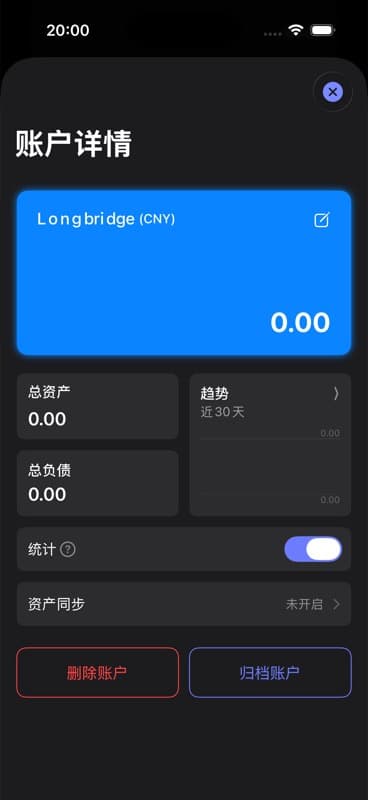
5. Bind the Longbridge Account and Load Sync Preview
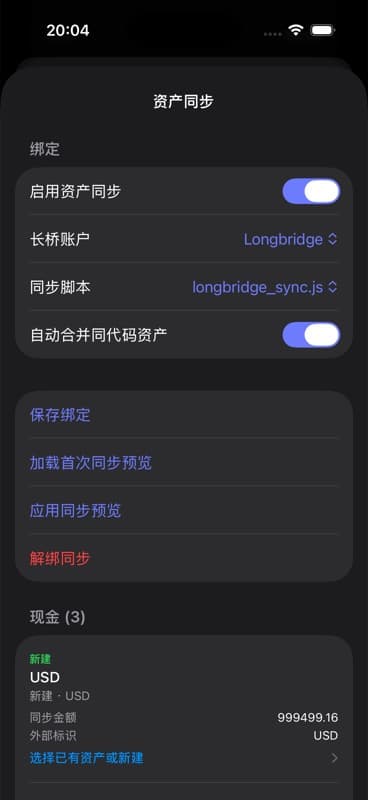
After completing real Longbridge authorization, follow these steps on the "Asset Sync" page:
- Open "Longbridge Account" and select the authorized Longbridge account.
- Keep the "Sync Script" as
longbridge_sync.js. - Optionally keep "Auto-merge Same-code Assets". When enabled, ONEW will attempt to merge assets with the same code returned by Longbridge with existing assets.
- Tap "Load First Sync Preview".
The sync preview groups the data returned by Longbridge into cash, securities, funds, etc., and marks each item to be created, merged, or updated. Review each item carefully before proceeding.
6. Apply the Sync Preview
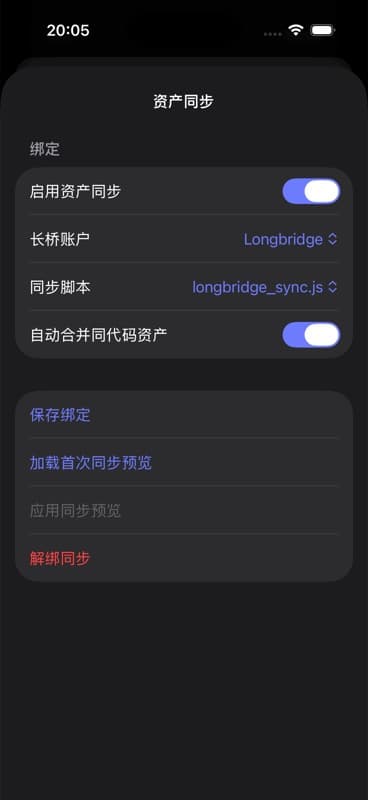
After confirming the sync preview is correct, tap "Apply Sync Preview". ONEW will write the changes into the current ONEW account. After the first sync preview is applied, the preview list will collapse and the "Apply Sync Preview" button will become disabled.
Important: Do not save "Enable Asset Sync" before applying the first sync preview. If you do, ONEW will prompt "Please apply the first sync preview before enabling asset sync."
After applying the preview, toggle on "Enable Asset Sync" and tap "Save Binding". Once saved, this ONEW account will retain the Longbridge connection, sync script, and auto-merge settings. Subsequent refreshes will continue to update assets using Longbridge read-only data.
After successful application:
- The current ONEW account will show assets synced from Longbridge.
- The "Asset Sync" status will change to Bound or Enabled.
- On subsequent refreshes, ONEW will continue to use Longbridge read-only data to update assets based on the binding.
FAQ
Why review the sync preview first?
The sync preview lets you check the data returned by Longbridge and see which assets ONEW plans to create, merge, or update before writing anything. This helps avoid writing unexpected data directly into your account.
Can I bind one Longbridge account to multiple ONEW accounts?
It is recommended to bind one Longbridge account to only one ONEW account that receives securities assets, to avoid duplicate statistics of the same assets.
Will ONEW modify my Longbridge account after authorization?
No. The Longbridge connection is used for read-only asset sync in ONEW. The authorization page also indicates that ONEW is requesting access to view account-related information.